
Win10 install walk through

Analoguesat

Administrator
Staff member
My Satellite Setup
TM 5402HD
Sky+ UK.
My Location
Scottish Borders
Installing Win10 onto your computer is remarkably painless these days. My adventures with Windows based computers started with Win3.11 in 1995ish, and Ive used most of the later operating systems over the next 20 years. I have to say that after no end of problems installing Windows over the years today its very very painless. This is to be a quick walkthrough of how to do a Win10 upgrade from Win7 or Win8.

EDIT - this was done with a wired connection onto my lan - if you are upgrading a laptop you will get the option to connect to your wifi during the build process.

We all loved Win7 but lets be brutally honest, fabulous though it was, its out of support now and getting increasingly vulnerable to attack. Its time to think about an upgrade. First of all you need to make a few decisions on what your upgrade route will be:

You could ditch the Microsoft ecosystem completely and go Mac or Linux. Ive used Linux Mint on an old laptop & its ok for basic browsing but for power users who like tinkering under the bonnet its a whole new learning experience. However if you are going down the windows route then read on.

Next decision - are you going to upgrade an existing installation or blitz it and start with a blank hard drive?? So far my experiments have been with a blank hard drive but I shall bite the bullet and upgrade an existing laptop in the near future to see how that goes. I shall document that in a seperate thread.

So you are going to upgrade. You can upgrade on the fly, but as our internet connection isnt fantastic (8meg on a good day) I downloaded the Win10 iso and put it onto a usb memory stick, and thats the upgrade route I shall talk you through. The general principles will be similar for an in situ upgrade.

Go here
and download the media creation tool.

Run it & you will get the option to upgrade the existing computer or download the iso. I selected the download iso option & if you put an 8gb memory stick into the computer you can create the bootable stick you need during the process. All very clever & saves mucking around with third party software to do it. You can choose 32bit 64 bit or a dual version. As I want to experiment with upgrading some really old kit over the winter I chose the dual option.

So after you have created the media boot the computer using the memery stick - you will need to select the appropriate boot option in the bios

If you have chosen the 32bit / 64bit option you will see this:

1.JPG


Apologies for the reflections!
 
Last edited:
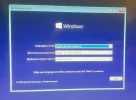
Let the installer do its thing - the language choice screen looks like this

2.webp
 
Half way through the install you will be asked for a key. Now any existing valid Win7 key can be used, or if the computer has Win8 on it chances are it will activate at the end of the install automatically. (See also other Win upgrade threads in this section)


If you are upgrading an existing Win7 or Win8 system click the I dont have a product key option down the bottom.

If you are planning on starting with a blank drive and have the Win7 autorisation key off the side of the computer click I dont have a product key

3.JPG
 
Last edited:
Next you get to choose your operating system:

4.JPG


Your existing product key will only activate the equivalent version of Win10. Win7 Pro & Win7 Ultimate will allow Win10 Pro. Anything else will give you Win10 Home

Most users here will probably install Win10 Home. The N versions are the semi crippled EU mandated version without Media Player. I dont care if media player is there or not - as far as Im concerned Media Player is a complete heap of steaming cow turd - I always install VLC player on any kit I build, its a far superior media player, and will play almost anything.

 
Last edited:
One last chance to change your mind as to how you are going to upgrade.

5.webp

If you have an existing drive you want to erase and start again from fresh choose the custom install. If you have put a brand new ssd into your computer to speed it up a bit you can choose the upgrade option
 
Choosing custom brings up this screen where you can wipe the drive. This particular drive was empty, so there are no partitions or files to remove, but its pretty obvious what to do:

6.webp


If the drive has existing data on it but you want a clean install just click on each listed partition in turn & click the delete option until it looks like the screenshot. Thats it - no formatting needed - the install will do what it needs during setup.

If you are going down this route make sure you have a backup of any important data on the drive BEFORE you start! Its too late once you have clicked delete!!

If your computer has more than one drive in for goodness sake double check you have the right one
before hitting delete. You might want to open the computer up & pull the power & data cables off any secondary drives just so there are no accidents. Been there - got the tshirt!
 
Unfortunately Microsoft in their wisdom wont let you complete the install without a Microsoft account:

7.JPG


You cant go any further without this. Dont panic - just use any throwaway email address to activate the computer, If you are doing several computers & are really paranoid you can set up a different email address for each install........... Once you have Win10 up and running you can turn off the MS network account & use a local account instead if you prefer...

Once Win10 is up & running you might want to look at a few add ons

The ones I have done the first things I download are:

Firefox - my preferred browser with an adblock installed immediately
VLC player - to replace Media Player
ShutUp10 - turns off most of the telemetry flowing back to the mother ship
Classic Shell - how anyone can cope with that hideous new start interface beats me - its terrible!
 
Last edited:
One last thing to do - check the activation status. On the start menu find This Computer, right click & select properties. Win7 & Win8 upgrades will probably already be activated like this one - which was a Win8 laptop I had been given (the hard drive was broken so I put a new 250gb ssd in it)

8.webp

If you have done a clean upgrade & its not activated then you need to put your Win7 COA key in. Click on Change product key down the bottom right and enter the 25 digit key. Any valid Win7 key of the same type will work - Ive done 2 or 3 now without any problems.

Win7 Starter or Home will only activate Win10 Home - you cant activate Win10 Pro with a Win7 Home Key.
 
I shall be doing some tests on Win 10 installs over the next few weeks with some observations, including a "How low can you go" test trying installs on some really ropy old kit. So if that might be of interest keep an eye on this section of the forum..
 
Last edited:
Great article but one minor correction. You can install without a Microsoft account but you need to make sure that you're not connected to the internet at that part of the setup process. So either disconnect from the Wi-Fi or remove the Ethernet cable if you're wired in.

This also gives you the benefit of not installing a lot of the rubbish apps (Candy Crush and the like). Once the setup finishes and you're at the desktop, click Start and unpin the placeholder tiles (the ones with the down-pointing arrow). You can then reconnect. It might ask you again to set up a Microsoft account but you can cancel it this time.

I hated Windows 10 when it was released but have been using it full time since the 1809 release. It's definitely a lot better than it was at the time.
 
Useful info - thanks for that - I will try that the next one I build. :-respekt
 
.....
This also gives you the benefit of not installing a lot of the rubbish apps (Candy Crush and the like). ...
If you install IObit "Uninstaller" then it's very easy to find and remove all the crap that comes with a W10 install - one of the first Apps that I always install. OTOH, be very careful what you DO uninstall as some of the MS ones are fairly essential to W10 operating correctly!
 
The 2 w10 greatest additions since sliced bread: o&o shutup, classic (aka open) shell.

A few words from a w10 hater (love the os itself, but all the s**t apps \ telemetry infections... frankenstein interface (still after 5 years+ things spread all over in start\settings\control panel etc)... those 'feature' updates often bringing chaos...), have done a dozen w10 tests, all the releases through the years, each time watching in dismay what ms is doing, always reverting back to my trusted, excellent, superstable 8.1.

Now, currently testing out w10 LTSC, that's another beast all together. Out of the box no store, no cortana, no onedrive, no apps, minimal telemetry, no gigantic GB's of updates (mainly security only) etc. The os for those who want to stay in control and run their choice of programs. Putting o&o shutup, classic shell on top of that and the sun is shining again on (in) my laptops :O)

Unless one wants (or needs) the latest and greatest in w10 bloatware, am highly recommending reading about ltsc (google it, everything is there). Not a general public version (it's for enterprises), but anyone who wants it can get it, and permanently activate it without a hitch. Install process is the same as any 10 version, remember to avoid the ms account trap :O)
 
Last edited:
^^^^^^^^^

As a Micros**t hater, I actually didn't mind Win 10 that much.

But discovering Fedora has been a revelation.
 
Ive had a play with an unconnected install of LTSC on a really rubbish netbook. Liking LTSC already, although the performance is umm shall we say interesting. However I shall save my observations for a seperate thread to save cluttering this one up.
 
Almost a year on & you can still activate win10 using win7 COA's. I did 3 or 4 yesterday for work. :)
 
Yes, the Optiplex in the other thread nearby came with Win 7 as standard and should have 10 Pro once I start up and activate.
 
A quick update on this topic. MS have now stopped the free activation of win10 or win11using win7 or win8 COA's. Attempting it using genuine win7 keys now throws an error :(

Now you either run none activated, or stump up several 10s of £ or $ for a genuine win10 code. (Or put a version of Linux onto your computer!)
 
TBH, and from "experience", you just have to (unfortunately??) accept that the "World moves on" and get those "upgrades" "sooner rather than later".

The only times I've ever paid for them were:
- About a decade or so ago, buying a 3 licence upgrade of m/c's running XP & (Ugh!) Vista
- About a year ago, buying a W10 licence for my BIL's Vista m/c after he (being an idiot - to be polite, as he's now deceased) never got around to it.
- About a week ago, buying a Win 11 licence for a Win 10 m/c that doesn't meet the W11 requirements and thus aiming to install Tiny 11 (google it if you don't understand) and licence it - but I haven't yet tried that.
 
TBH, and from "experience", you just have to (unfortunately??) accept that the "World moves on" and get those "upgrades" "sooner rather than later".

The only times I've ever paid for them were:
- About a decade or so ago, buying a 3 licence upgrade of m/c's running XP & (Ugh!) Vista
- About a year ago, buying a W10 licence for my BIL's Vista m/c after he (being an idiot - to be polite, as he's now deceased) never got around to it.
- About a week ago, buying a Win 11 licence for a Win 10 m/c that doesn't meet the W11 requirements and thus aiming to install Tiny 11 (google it if you don't understand) and licence it - but I haven't yet tried that.
I’ve paid for, I think, three versions of Windows. XP, 7 and 8. 8 Pro was on sale for something silly like 50 quid when it came out first so I got it. I didn’t end up using it until 8.1 came out though. Since then, I’ve had access to MSDN through work so just used the Windows 10, 11 and Server keys from there.
 
Back
Top